How do I connect QuickBooks Online?
Click Connect QuickBooks after you sign up, then approve the connection on Intuit’s page with your QuickBooks login. StashGrade reads your books and builds your grade on its own.
Step by step
- 1Create your free account at stashgrade.com/signup.
- 2On the welcome screen, click Connect QuickBooks.
- 3Intuit’s sign-in page opens. Log in with your QuickBooks Online login.
- 4Pick your company if you have more than one, and approve the connection.
- 5You land back in StashGrade. It reads your books and builds your grade.
Good to know
- The connection is read-only. Nothing changes in your books.
- Messy books are fine. A number StashGrade can’t find drops out of the score instead of counting against you.
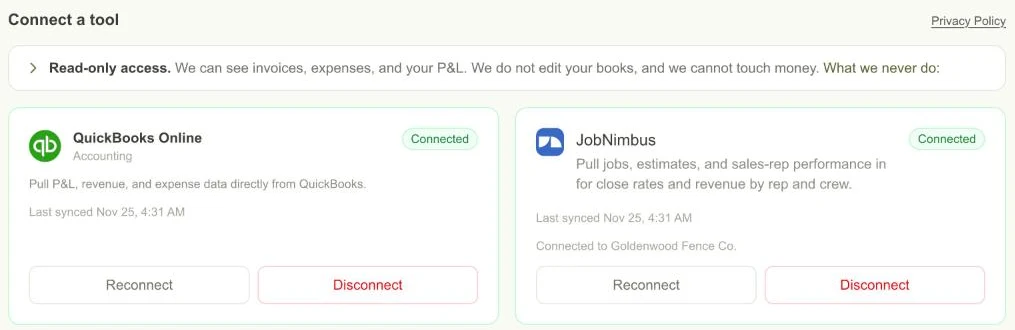
- To disconnect, open My tools in StashGrade and click Disconnect on the QuickBooks Online card.
Common questions
Is StashGrade free to start?
Yes. StashGrade is free to start, and new accounts get a 7-day trial of the paid features with no card required. Every plan is on the pricing page.
Do I need my accountant to connect?
No. Anyone with a QuickBooks Online login for the company can approve the connection.
What if I use QuickBooks Desktop, Xero or FreshBooks?
Xero and FreshBooks connect the same way. QuickBooks Desktop users upload a few reports instead.
Related
Written by Justin Judy. Last updated November 25, 2026.