How do I share my StashGrade with my coach or consultant?
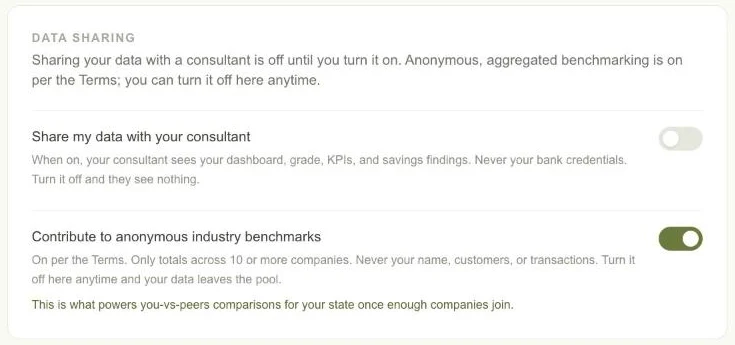
Turn on sharing in Settings, under Data Sharing. Sharing is off by default, and turning it off ends their access right away.
Step by step
- 1Open Settings in StashGrade.
- 2If you see Your consultant, pick your coach or consultant and click Link consultant. If you signed up through their link, they are already linked.
- 3Under Data Sharing, turn on “Share my data with” followed by their name.
- 4To stop sharing, turn the same switch off.
Good to know
- Signing up through a consultant’s link shows them nothing until you turn sharing on.
- Only the owner or an admin can link a consultant or change sharing.
- Your consultant sees your company only. They never see another company’s numbers.
Common questions
What does my consultant see?
Your StashGrade dashboard, once you turn sharing on. They see nothing before that.
Can I share with my bookkeeper too?
Yes. Invite them as a team member and pick the role that fits what they need to see.
Related
Written by Justin Judy. Last updated November 25, 2026.